What Is Claude Code? Features, Setup, & Limits [Guide] | CodeConductor
AI Coding
What Is Claude Code? Features, Setup, & Limits [Guide]
Claude Code is an AI coding agent that helps developers inspect files, edit code, debug issues, review changes, and document projects from inside a local codebase. Learn its key features, setup steps, use cases, limits, and how Harmony MCP helps preserve codebase context across sessions.
Have you ever tried to understand what Claude Code is, and why developers, product teams, and technical operators are paying attention to it?
Claude Code is an AI coding agent that operates within a project folder, where code, documentation, scripts, tests, and configuration files already reside.
It helps users inspect files, understand code relationships, edit project assets, debug issues, and support development workflows through natural language. This shift matters because modern software teams need AI tools that improve speed without weakeningAI risk management,secure software development, orAI system security.
For larger repositories, Harmony supports Claude Code by giving AI coding agents persistent repository memory, clearer code relationship context, and cleaner retrieval paths, so teams can reduce repeated context discovery and keep coding sessions more consistent.
Before comparing Claude Code with other Claude products or looking at its setup process, it helps to define the tool clearly. Claude Code is not just another AI chat window. It belongs to a newer class of AI-assisted software tools built around code context, project structure, and developer workflows.
What is Claude Code?
Claude Code is an AI coding assistant that lets users ask coding questions, request changes, and review development tasks through natural language.
It helps developers and technical users reason through software tasks without separating the conversation from the project they are working on. That matters because AI-assisted development still needs clear review steps, responsible use, and secure design habits.
In simple terms, Claude Code helps users work through coding tasks with AI assistance. It does not replace human judgment, source control, testing, documentation, or secure development review. It works best when users treat it as a coding partner, not as an unchecked replacement for engineering decisions.
How Claude Code Compares to Claude, Claude Projects, and Claude Desktop
Product
Primary Use Case
Best For
Key Difference from Claude Code
Claude Code
Software development within a local project environment
Coding, debugging, reviewing files, working with repositories
Directly interacts with codebases and development workflows
Claude Code is built for working directly with software projects, while the other Claude products focus on conversation, organization, or general access. Note: Claude Code is no longer terminal-only. It also runs inside the Claude Desktop app and integrates with VS Code, giving developers flexibility in how they access AI-assisted coding.
What Claude Code Can Do?
Claude Code supports software workflows through five core functionalities: project analysis, code editing, debugging support, documentation assistance, and code review support.
Project Analysis and Understanding Claude Code can inspect project files and explain how components connect. This helps users understand unfamiliar repositories, locate important files, and trace how functions, modules, routes, or configuration settings relate to each other.
Code Editing and Refactoring It can suggest changes, draft updates, and explain the purpose of each modification before the user accepts it. This makes it useful for small fixes, feature updates, refactoring, and cleanup tasks.
Debugging Support Claude Code can help interpret error messages, identify likely causes, and suggest possible fixes. Developers still need to verify results because software defects can create security and reliability risks when they move into production.
Documentation Assistance It can draft README updates, summarize architecture, explain setup steps, and turn scattered notes into clearer project instructions. Clear documentation supports better handoffs, faster onboarding, and more consistent review across development teams.
Code Review Support Claude Code can summarize changes, highlight risky areas, and prepare review notes. This supports safer development when teams connect AI assistance with human approval, source control, testing, and vulnerability response. Best practice is to require human review for all AI-generated changes before they merge, especially for authentication, payment, or infrastructure code.
Beyond the five core workflows above, Claude Code now includes several advanced features shipped in 2025 and 2026:
Feature
What It Does
Auto Mode (research preview)
Autonomously plans and executes multi-step tasks with a built-in safety classifier that pauses for human approval on risky actions
Plan Mode
Explores the codebase and proposes a plan before making any changes, letting you review before execution
Integrate external tools and data sources via the Model Context Protocol
Plugins
Bundle skills, subagents, commands, hooks, and MCP definitions into versioned packages you can share across projects
Checkpoints
Automatic snapshots before changes, so you can roll back if something goes wrong
Headless CLI (claude -p)
Run one-shot commands from scripts or CI/CD pipelines without an interactive session
Get insights in your inbox!!
Weekly tips on building smarter apps. Join 8,200+ founders and builders.
No spam. Unsubscribe anytime. We respect your privacy.
Claude Code is most useful when the task has a clear software goal, such as explaining a repository, fixing an error, updating documentation, reviewing changes, or improving existing code.
Once you understand what Claude Code can do, the next question is who can use it effectively. This matters because Claude Code lowers the effort needed to work with software tasks, but it does not turn every coding workflow into a fully no-code experience.
Can Non-Developers Use Claude Code?
Yes, non-developers can use Claude Code. The Desktop app provides a graphical interface with folder pickers and visual diff review - no terminal required. For those comfortable with the terminal, the CLI version offers the same capabilities with more control.
Claude Code fits non-developer power users who work with software teams, such as product managers, technical writers, startup operators, QA testers, data analysts, and support engineers.
These users may not write production code every day, but they often need to read project files, update documentation, inspect errors, organize technical notes, or ask focused questions about how a system works.
A non-developer can use Claude Code more safely when the task is limited, clear, and reviewable. Good beginner tasks include asking Claude Code to summarize a folder, explain a configuration file, draft documentation, identify where a feature is located, or describe an error message in plain language.
Non-developers should avoid using Claude Code for high-risk changes without developer review. Code changes that affect authentication, payments, customer data, production infrastructure, access controls, or security settings need technical approval before they are merged or deployed.
Clear instructions matter. The same principle that applies to technical documentation applies to Claude Code prompts: Ask one clear question, name the file or task, and request an explanation before asking for changes.
After seeing that non-developers can use Claude Code with clear boundaries, the next step is deciding where the tool fits best. Claude Code works strongest when the user has a defined software task, a known project location, and a review path for the output.
Where Claude Code Works Best and When You Should Use It?
Claude Code works best for focused software work where the user needs help understanding, changing, or reviewing a project without leaving the development environment.
Use Claude Code when you
Need to explore an existing repository. It can help you map folders, identify key files, and understand how a project is organized before you make changes. This is useful during onboarding, handoffs, maintenance work, or feature planning.
Want to improve existing code rather than create a full product plan from scratch. It fits tasks such as cleaning up repeated logic, updating small features, checking implementation details, or preparing a review change.
Require faster technical orientation. A developer can ask where a behavior is defined, how a function is used, or which files affect a workflow. This saves time when a project has multiple modules, services, routes, or configuration layers.
Need support for maintainable software work. Code becomes more valuable when teams can understand, maintain, and reuse it. Claude Code supports that goal by helping users explain existing logic, clarify project structure, and prepare cleaner changes.
One can also use Claude Code when the work has a clear stopping point. Good tasks include “explain this module,” “find where this error starts,” “summarize this pull request,” “update this README,” or “show me which files control this feature.”
Claude Code is the right choice when the task is specific, file-based, and reviewable. It is not the right starting point when the user has no project folder, no technical reviewer, or no clear software outcome.
After identifying where Claude Code fits best, it is just as important to know where it can fall short. These limits do not make Claude Code less useful, but they define the situations where users need stronger planning, review, context control, or team oversight.
Where Claude Code Has Limits?
Claude Code has limits when a task is unclear, a repository is too large to reason through cleanly, or the output affects systems that need formal review before release.
Claude Code may struggle when project context is scattered across many folders, services, branches, or undocumented decisions. In those cases, the agent may need repeated instructions before it understands the full relationship between files, dependencies, and business logic.
Claude Code also depends on the quality of the user’s prompt. A vague request can produce a vague answer, while a specific request can produce a more useful result. Users get better results when they name the task, define the expected output, and ask Claude Code to explain its reasoning before making changes.
Claude Code should not be used as the only reviewer for sensitive work. Tasks involving identity, access, customer records, financial logic, infrastructure, or production systems need human review and controlled approval. AI-generated suggestions may look correct but still miss edge cases, security requirements, or system-specific constraints.
Claude Code can also create risk when users accept changes without checking them. AI-generated suggestions may look correct but still miss edge cases, security requirements, or system-specific constraints. Always review changes before saving, committing, or deploying.
Claude Code Can Lose Workflow Continuity Between Sessions
Claude Code starts each session fresh. When a new session begins, the agent must re-read files, rebuild repository understanding, and re-learn project conventions before useful work continues. This creates repeated setup work even when the user is continuing the same task.
Anthropic has shipped two built-in mitigations:
Auto-memory: Claude Code automatically writes its own notes to ~/.claude/projects/<project>/memory/MEMORY.md (not CLAUDE.md). These notes capture build patterns, debugging insights, and preferences Claude discovers while working. The first 200 lines load at every session start
Session Memory: Claude Code automatically writes structured summaries of your work during sessions and recalls relevant ones when you start a new session. You'll see "Recalled X memories" at session start and "Wrote X memories" during work
These features reduce but do not eliminate the gap. For teams working across large or complex repositories, third-party tools like Harmony provide an additional persistent memory layer via the Model Context Protocol (MCP). Harmony keeps project structure, code relationships, and prior working context easier to recall, so teams spend less time re-explaining the same codebase after a new session begins.
Getting Started with Claude Code
Getting started with Claude Code depends on how you access it. The Desktop app path is simplest: install the app, sign in, and open the Code tab. The terminal path requires four steps: open a terminal, install Claude Code, launch it from your project folder, and complete the first-time setup.
What’s the Terminal?
The terminal is a text-based application for controlling your computer with typed commands.
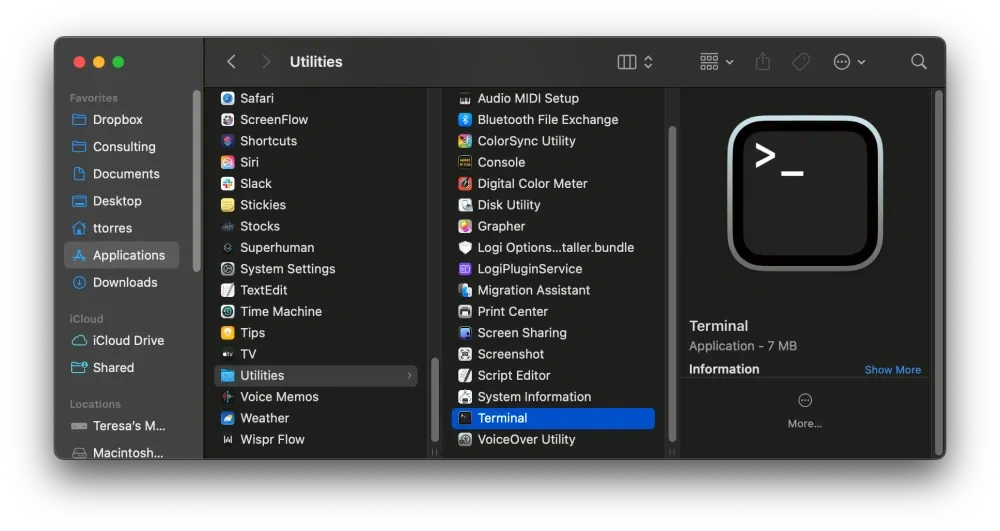
On Mac, open Terminalfrom Applications > Utilities.
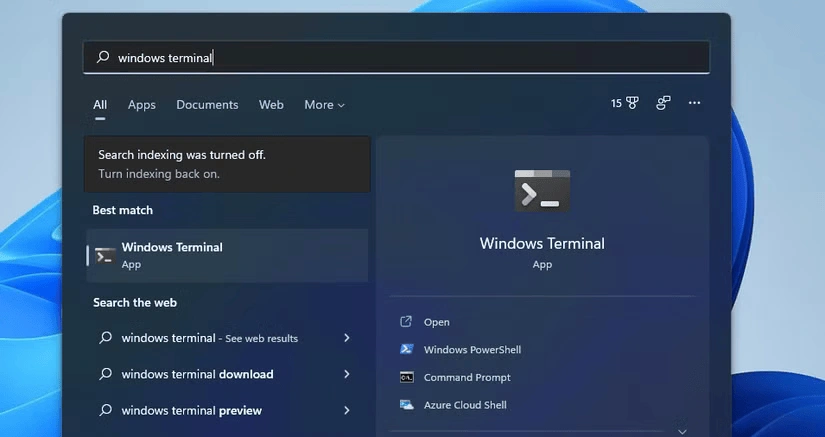
On Windows, search for Windows Terminal from the Start menu. The window may look plain, but it lets you move between folders, run installers, check software versions, and start developer tools.
For Claude Code, the terminal matters because the tool starts from a folder location. When you open Claude Code inside a folder, that folder becomes the working area for the session.
Install Claude Code
Claude Code now installs as a native binary — no Node.js, npm, or PATH configuration required.
For Mac, Linux, or WSL:
bash
curl -fsSL https://claude.ai/install.sh | bash
For Windows PowerShell:
powershell
irm https://claude.ai/install.ps1 | iex
After installation, verify it works:
bash
claude --version
A version number means the installation succeeded. If you see a missing command or error, restart your terminal, check that the installer finished, or refresh your system path. Anthropic shifted to a native binary in late 2025, so Node.js is no longer a prerequisite for new installations.
Start Claude Code in the Right Folder
Claude Code should be opened from the folder where you want it to work.
On Mac, open Finder, locate the project folder, right-click the folder, and choose the option that opens a terminal at that location.
On Windows, open File Explorer, locate the project folder, and open a terminal from that folder path.
Once the terminal points to the correct folder, start Claude Code:
This folder choice matters. Do not launch Claude Code from a folder that contains unrelated private files, credentials, financial records, personal documents, or customer data that the session does not need.
Complete the First-Time Setup
The first launch usually asks you to connect an account, confirm access, and initialize the working folder.
Use the account option that fits your budget and usage needs. Review any prompt that asks for local folder access. Only continue if the folder is safe for Claude Code to read during the session.
If Claude Code asks you to run an initialization command, follow the prompt and keep the first setup simple. The goal is not to perfect every setting on day one. The goal is to create a working starting point that you can adjust after a few safe test prompts.
A good first prompt is:
Explain what is inside this folder. Do not edit any files yet.
This gives you a low-risk way to confirm that Claude Code can read the project context before you ask it to make changes.
Setup Safety Checklist
Before using Claude Code on real work, check these points:
Open Claude Code only inside the folder you want it to inspect.
Keep sensitive files out of the working folder unless they are required.
Confirm the version after installation.
Ask for explanations before file changes.
Review every change before saving, committing, or deploying.
Use trusted installation sources and avoid unknown scripts.
Install developer tools only from trusted sources, and keep the working folder limited to the files needed for the task.
That principle applies here: Install developer tools only from trusted sources, and keep the working folder limited to the files needed for the task.
Once Claude Code is installed and opened in the right folder, you can begin with simple read-only prompts before moving into edits, debugging, or code review.
Keep Claude Code Context After Session Breaks
Even with Auto Memory and Session Memory, large or complex repositories may still require repeated context rebuilding across sessions. For teams working across many services, branches, or undocumented decisions, third-party tools likeHarmony provide an additional persistent memory layer via the Model Context Protocol (MCP). Harmony keeps project structure, code relationships, and prior working context easier to recall, so teams spend less time re-explaining the same codebase after a new session begins.
Ready to Build Without Code?
See how CodeConductor helps enterprises ship faster while staying compliant.
Use Claude Code inside project folders to inspect files and relationships.
Treat Claude Code as a coding partner; keep reviews, tests, and source control.
Choose Claude Code over Claude.ai for repository-aware editing, debugging, and reviews.
For large repositories, add Harmony to provide persistent memory and clearer context.
Written by
Paul Dhaliwal
Founder & Chief Executive Officer
Paul Dhaliwal is a tech innovator and Founder of CodeConductor, an open-source no/low-code platform. With 10+ years of experience in AI and scalable development, Paul focuses on crafting intelligent solutions that drive real-world value. A firm believer in the mantra "Eat, Sleep, Code, Repeat," he balances his passion for software with a love for travel and family.
⚡
Build your app
No coding. No designers. Just describe what you want and watch AI build it.

![What Is Moyai? LiteLLM's Open-Source Cloud Coding Agent [Explained]](/_next/image/?url=%2Fuploads%2Fmoyai-open-source-coding-agent-codeconductor-592f003d-800.webp&w=3840&q=75)